What is Plotly Express?
- Plotly Express is a high-level interface for creating graphs quickly and intuitively. It contains dozens of figures to choose from, ranging from scientific, statistical, and financial graphs to 3D charts and maps.
- Every figure has numerous attributes that allow you to customize figures according to users’ needs.
Install Plotly Express:
- Packages such as Plotly Express are available in a public repository called PyPI (Python Package Index)
- The package can be installed using the magic function %pip install in a Jupyter Notebook:
- nbformat is a package required for Plotly Express to work properly in a Jupyter Notebook environment.
1%pip install plotly-express
2%pip install --upgrade nbformat
Plotly Express Attributes For Bar Charts:
- Here’s a complete list of the attributes available for the Plotly Express bar chart, all currently set to None.
- The beautiful thing about Plotly Express is that, often, all you need to know to create a graph are the first three attributes: data_frame, x, and y.
python
1plotly.express.bar(
2    data_frame=None, x=None, y=None, color=None, pattern_shape=None,
3    facet_row=None, facet_col=None, facet_col_wrap=0,
4    facet_row_spacing=None, facet_col_spacing=None,
5    hover_name=None, hover_data=None, custom_data=None,
6    text=None, base=None,
7    error_x=None, error_x_minus=None, error_y=None, error_y_minus=None,
8    animation_frame=None, animation_group=None, category_orders=None,
9    labels=None, color_discrete_sequence=None, color_discrete_map=None,
10    color_continuous_scale=None, pattern_shape_sequence=None,
11    pattern_shape_map=None, range_color=None,
12    color_continuous_midpoint=None, opacity=None, orientation=None,
13    barmode='relative', log_x=False, log_y=False,
14    range_x=None, range_y=None, text_auto=False,
15    title=None, template=None, width=None, height=None,
16)
Ploting a Simple Vertical Bar Chart with Plotly Express:
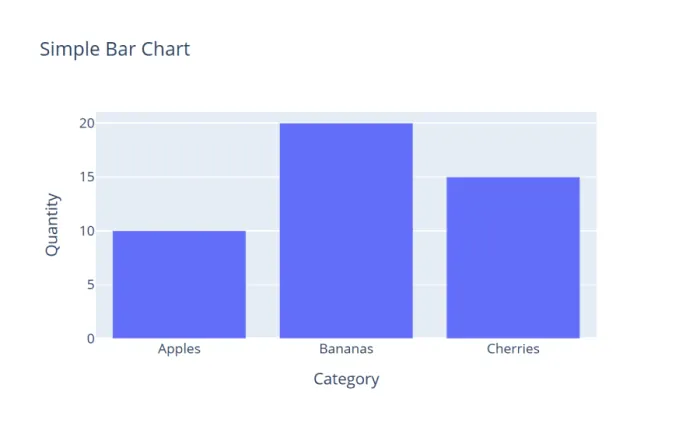
- The code below creates a simple bar chart with three categories: Apples, Bananas, and Cherries.
python
1import pandas as pd
2import plotly.express as px
3
4# Create a DataFrame
5df = pd.DataFrame({
6    "Category": ["Apples", "Bananas", "Cherries"],
7    "Quantity": [10, 20, 15]
8})
9
10# Create a bar chart
11fig = px.bar(df,
12            x="Category",
13            y="Quantity",
14            title="Simple Bar Chart")
15
16# Display the chart
17fig.show()- Output:
Ploting a Simple Horizontal Bar Chart with Plotly Express:
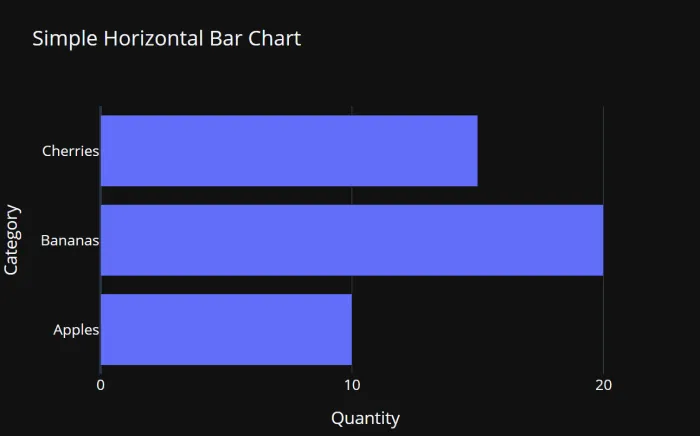
- Attributes including orientation=‘h’, template=‘plotly_dark’, height=400, and width=600 are added to the code below to create a horizontal bar chart.
- The update_layout() function can be used to further customize the chart. In this case, the dtick attribute is set to 10 to control the tick marks on the x-axis.
python
1import pandas as pd
2import plotly.express as px
3
4# Create a DataFrame
5df = pd.DataFrame({
6    "Category": ["Apples", "Bananas", "Cherries"],
7    "Quantity": [10, 20, 15]
8})
9
10# Create a horizontal bar chart
11fig = px.bar(df,
12            x="Quantity",
13            y="Category",
14            title="Simple Horizontal Bar Chart",
15            template='plotly_dark',
16            orientation='h',
17            height=400,
18            width=600)
19
20# Update Figure Layout
21fig.update_layout(
22            xaxis=dict(
23            dtick=10)
24            )
25# Display the chart
26fig.show()- Output: